
3 posts tagged with "mail"

View All Tags

ULTIMATE GUIDE: Setting Up Your Server for Reliable Email Delivery. PART 2: How to prevent outgoing emails from going to spam

· 8 min read
Customer Care Engineer

dns-records-configuration-spf-dkim-dmarc-ptr-mx-prevent-email-spam-guide

info

DNS records are a set of technical parameters of a domain that determine where to route different types of traffic: web, mail, FTP, etc.

They link the domain name to IP addresses and other servers so that browsers and mail systems know where to connect when working with your website or email.

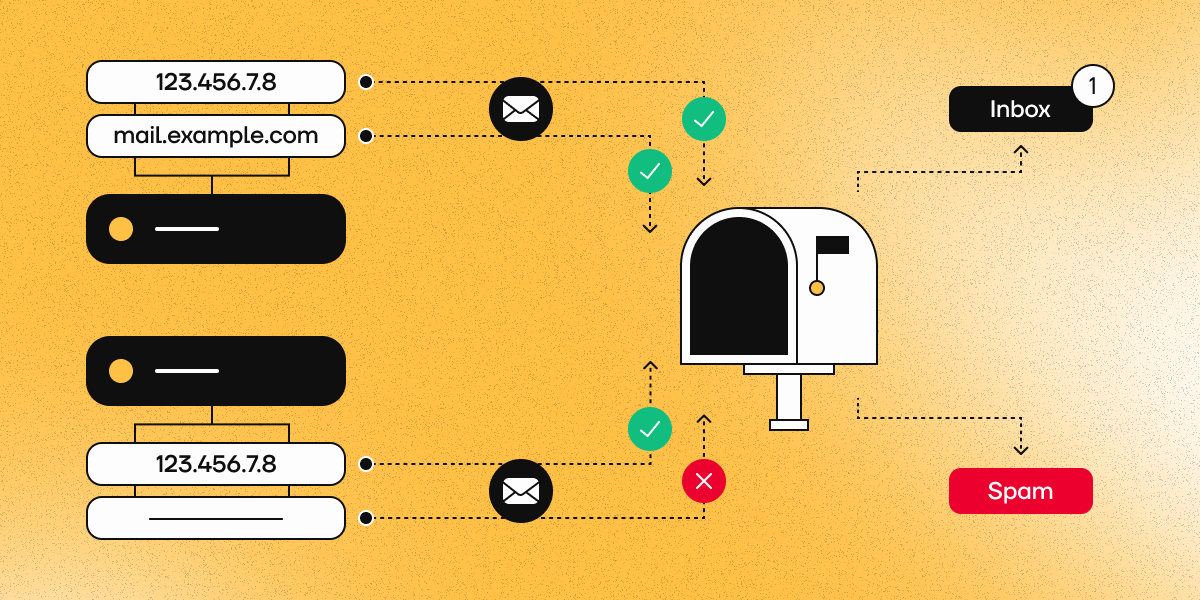
In Part 1 of this guide, we configured the firewall and opened the necessary ports for mail delivery. Now that we have made sure that messages are being sent from your server, we need to check that the DNS records are configured correctly. Gmail, Outlook, and other major mail services strictly verify MX, SPF, DKIM, DMARC, and PTR before delivering messages to the primary inbox. Correct records sharply increase the chance that messages will land in the Inbox folder instead of Spam (or be completely rejected).

In the following steps, we will describe how to check the current DNS records of each type and provide recommendations on how to configure them correctly.

warning

In this part of the article, for all checks we use the domain example.com, IPv4 address 1.2.3.4 and IPv6-Address 2001:db8:1:11::1 as examples. Please replace them with the real name of your website and your actual IP addresses.

Pre-requisites

Step 1. Checking the DNS provider

In the context of this article, we will need to edit DNS records multiple times. This must be done in the control panel of the current DNS provider for your domain. To do this correctly, you need to know exactly who is providing these services right now. Otherwise, the changes you make will have no effect.

Most often the role of DNS provider is performed by:

  • your hosting provider,

  • your domain registrar, or

  • your DDoS protection provider.

But this is not always the case.

You can find out exactly who is the DNS provider for your domain at the moment using the whois command. For example, let us check the domain kodu.cloud:

whois kodu.cloud | grep -i "Name Server" | awk '{print $3}'

The output will list the NS servers:

art.ns.cloudflare.com
isla.ns.cloudflare.com

That means that in this case DNS records must be edited in the Cloudflare control panel.

In many cases, you can infer who the DNS provider is from the domain name. However, this is not always so. For example, for our free DNS service, which is available to all our customers, the names look like this:

birman.nameserver.red.
rex.nameserver.red.
korat.nameserver.blue.
toybob.nameserver.blue.

 In this case, please contact your hosting provider’s technical support for further clarification.

After you have definitively identified your DNS provider, log in to their control panel and go to the section for editing DNS records for your domain. Most of the changes described below will be made there. Since all interfaces differ, it is impossible to provide a universal step-by-step guide.

If you encounter difficulties at this stage, consult technical support.

warning

After changing DNS records, cache propagation can take from 20 minutes to 24 hours. Taking into account the time required for major mail services to update your reputation, for stable mail delivery it is recommended to wait about 48 hours, although more often the situation normalizes after 2-3 hours.

Step 2. Checking for IPv6

For correct configuration, we need to know exactly whether the server has an IPv6 address. To find out, run the command:

ip a | grep inet6

If the output is approximately as follows:

inet6 ::1/128 scope host noprefixroute
inet6 2001:db8:1:11::1/120 scope global
inet6 fe80::1/64 scope link

then your server has an IPv6 address. It will be shown on the line ending with scope global up to the / sign.

Write down your server’s IPv6 address so that you can use it later.

If the output is empty, or contains only a single line of the form:

inet6 fe80::1c2:3dff:fe4a:5b6c/64 scope link

then your server does not have IPv6. In all subsequent steps, please do not use IPv6.

DNS record configuration

Step 3. Checking the MX record

The MX record specifies where incoming mail for the domain should be delivered. You can check it with the command:

dig MX example.com +short

Example of correct output:

10 mail.example.com.

If the output shows an incorrect value, edit the DNS record in your DNS provider’s control panel:

  • Type: MX
  • Name: @
  • Address: mail.example.com
  • Priority: 10

If the record is missing, you will get an empty output:

~ dig MX badexample.com +short
~

In this case, create a DNS record following the above example.

Also note that there can be several MX  records. In this case, mail will first be sent to the server with the smaller numeric priority value (for example, 10 has a higher priority than 20).

If the primary server is unavailable, delivery will be performed to the next server in order of priority.

Step 4. Checking A and AAAA records

Next, make sure that mail.example.com and example.com actually point to the server from which messages are being sent:

dig A example.com +short
dig A mail.example.com +short
dig AAAA example.com +short
dig AAAA mail.example.com +short

The IP addresses in the output of these commands must match the actual IPv4 and IPv6 addresses of your server. If they differ, or if such records are missing, edit or create them in your DNS provider’s control panel:

  1. example.com (А):
  • Type: A
  • Name: @
  • Address: 1.2.3.4
  1. example.com (АAAA):
  • Type: AAAA
  • Name: @
  • Address: 2001:db8:1:11::1
  1. mail.example.com (A):
  • Type: A
  • Name: mail
  • Address: 1.2.3.4
  1. mail.example.com (AAAA):
  • Type: AAAA
  • Name: mail
  • Address: 2001:db8:1:11::1

Step 5. Checking the SPF record

SPF defines which servers are allowed to send mail on behalf of the domain.

Checking the record:

dig TXT example.com +short

Example of a correct SPF record:

example.com. TXT "v=spf1 ip4:1.2.3.4 ip6:2001:db8:1:11::1 a mx ~all"

It is extremely important that the domain has only one SPF record. Multiple records can cause a validation error.

If the IP address differs from your current server address, or if such a record is missing, edit or create it in your DNS provider’s control panel:

If IPv6 is present:

  • Type: TXT
  • Name: @
  • Value: v=spf1 ip4:1.2.3.4 ip6:2001:db8:1:11::1 a mx ~all

If there is no IPv6:

  • Type: TXT
  • Name: @
  • Value: v=spf1 ip4:1.2.3.4 a mx ~all

The SPF record has many additional options, but this set is sufficient for correct message sending.

Step 6. Checking the DKIM record

DKIM is a digital signature of a message that confirms that it was sent from the specified domain and has not been forged. A TXT DNS record with a public key is used to verify the signature: first the signature is created on the server, and then the key is published in DNS.

There are various ways to obtain a DKIM signature for your mail domain, but within the scope of this article we will consider the simplest option - using FASTPANEL. In FASTPANEL, a DKIM signature is created for mail domains by default.

FASTPANEL is extremely convenient for working with a mail server: you do not need to configure or install anything manually. Out of the box, you get a configured mail server for full-fledged work with incoming and outgoing mail, as well as a convenient webmail client.

Therefore, all you have to do is copy the public key value and add it to the corresponding DNS record. To do this, in the panel, go to “Management” → “Mail” and click on the “DKIM” button at the end of the row with the name of your mail domain:

dns-records-configuration-spf-dkim-dmarc-ptr-mx-prevent-email-spam-guide

Then copy the public key:

dns-records-configuration-spf-dkim-dmarc-ptr-mx-prevent-email-spam-guide

On the side of your DNS provider, create the following DNS record:

  • Type: TXT
  • Name: dkim._domainkey
  • Value: the key that you copied earlier

If such a record already exists, it is better to still replace the key value to be sure it is up to date.

There can be several DKIM records, but in that case they must have different names. For example, having records with the names dkim._domainkey and mail._domainkey at the same time will not cause any problems.

After configuration and DNS cache update, you can check for the presence of the DKIM record using the command:

dig TXT dkim._domainkey.example.com +short

Step 7. Checking the DMARC record

DMARC sets the rules for handling messages that fail SPF or DKIM.

Checking the record:

dig TXT _dmarc.example.com +short

Example output:

"v=DMARC1;p=reject;sp=reject;adkim=s;aspf=s"

The DMARC record has many additional options, but for common scenarios it is sufficient to add a record of the following form:

  • Type: TXT
  • Name: _dmarc
  • Value: v=DMARC1; p=reject

Step 8. Checking the sendmail_path variable (optional)

This step will be very useful if you send messages directly from your website (for example, using contact forms or when placing orders). To ensure that all necessary DNS records are taken into account for such messages, set the following value for the sendmail_path variable in your site’s PHP settings:

/usr/sbin/sendmail -t -i -f "[email protected]"

For example, in FASTPANEL you can do this in the site card in the “PHP Settings” section.

Hostname and PTR configuration

PTR (or rDNS) is a reverse DNS record that links an IP address to a domain name.

The server Hostname is simply the name by which the server can be identified on the network.

If the PTR does not match the server hostname, messages will almost certainly end up in spam.

Best practice is to set mail.example.com as both values (remember that this value must always be replaced with the real name of your domain).

Step 9. Hostname

To find out your server’s current hostname, run the command:

hostname

To change it, run:

sudo hostnamectl set-hostname mail.example.com

Then run the hostname command again to make sure that everything is correct.

Step 10. PTR

The situation with the PTR record is somewhat different: it can be changed only by the owner of the IP address, that is, your hosting provider. You can learn more about the reasons for this from this article.

Some hosting providers allow you to edit the PTR record in your personal account. You can try to do this there yourself. If that does not work, contact technical support and ask them to set the following value as the PTR record:

mail.example.com

Remember that this value must always be replaced with the real name of your domain.

Changes are usually applied immediately; there is no need to wait for DNS cache updates in this case. You can check the current PTR record using the command:

dig -x 1.2.3.4 +short

Final check

If you have reached this section, congratulations - you are on the home stretch. Now all that remains is to verify that everything is configured correctly and that messages from your server are almost guaranteed to end up in the Inbox for any recipient. Before doing this, be sure to wait for DNS cache updates. It is best to wait at least 1-2 hours after the last changes to DNS records.

There are many third-party services for such checks. You can use any of them. In this article, we will use the mail-tester.com service.

To perform the check, go to this website and copy the name of the test mailbox:

dns-records-configuration-spf-dkim-dmarc-ptr-mx-prevent-email-spam-guide

Send a message to this address from any mailbox on your domain and click the “Then check your score” button. Do not forget to specify a subject and write something in the body of the message.

After that, the service will show the results of checking DKIM, SPF, DMARC, the presence of a PTR record and an overall “reputation” score for the message, as well as whether your server is listed in SPAM blacklists.

If you have carefully and consistently followed all the steps in this article, the result will be 10/10. If it is lower, please study mail-tester’s recommendations. They will explain in detail what the problem is and how to fix it.

Additionally, you can check whether your server is listed in SPAM blacklists using another excellent service:

 https://mxtoolbox.com/blacklists.aspx

If any of the checks show that your server’s IP address has ended up in one of the lists, contact your hosting provider so that they can help resolve the issue.

That concludes the configuration. If you do not want to spend time on your own research or have run into any problems, you can always contact kodu.cloud technical support. We will perform all the steps described here as quickly as possible for our clients at any time, free of charge.

ULTIMATE GUIDE: Setting up your server for reliable email delivery. PART I: Firewall

· 10 min read
Customer Care Engineer

email-server-linux-firewall-configuration-smtp-imap-setup-guide

info

Firewall  is software (or a hardware-software appliance) that controls which connections to the server are allowed and which are blocked. In the vast majority of modern Linux server distributions, some form of firewall is available out of the box.

Reliable email delivery to the recipient depends not only on the mail server itself, but also on correct DNS records and firewall configuration. If something is wrong with those, your messages are very likely to land in the Spam folder - or not be delivered at all.

This article outlines the key steps that will allow you to achieve nearly 100% reliable delivery of messages sent from your server. In Part 1, we will walk through the possible firewall-related issues in detail; in Part 2, you will find instructions for configuring DNS records.

The information in this article applies only to mail servers running on Linux distributions. Debian 12 and Rocky Linux 8.10 with the FASTPANEL control panel are used as examples.

Pre-requisites

Step 1. Install diagnostic tools

To check records and ports, you will need:

  • dig - for analyzing DNS records

  • lsof - for checking the mail server state

  • netcat - for checking port availability

  • whois - for checking the current DNS provider

Installation on Debian/Ubuntu:

sudo apt update && sudo apt install -y bind9-dnsutils netcat-openbsd lsof whois

CentOS/AlmaLinux/Rocky Linux:

sudo yum install -y bind-utils nmap-ncat lsof whois

Mail port availability

info

A port is a numerical identifier used to address different services on a server. Each service or application listens on its own port to exchange data over the network (for example, HTTP uses port 80, and SMTP uses port 25).

To perform all the following steps, connect to your server over SSH using the root user credentials or use sudo when running commands, as shown in the examples. You can learn how to connect to a server via SSH in our SSH article.

Step 2. Check mail server status

Before checking whether the ports are reachable over the network, first make sure that the mail servers are running and working correctly. Outgoing mail is usually handled by Exim or Postfix, and incoming mail by Dovecot.

To check that they are running, use the commands:

sudo lsof -i:25
sudo lsof -i:143

If the services are running, you will get an output similar to the following:

Port 25:

COMMAND PID USER   FD   TYPE    DEVICE SIZE/OFF NODE NAME
exim    839 exim    4u  IPv6 778199358      0t0  TCP *:smtp (LISTEN)
exim    839 exim    5u  IPv4 778199359      0t0  TCP *:smtp (LISTEN)

If your server uses a different SMTP server, for example Postfix, you will see its exact name instead of exim in the first column. If needed, use that name in subsequent commands.

Port 143:

COMMAND PID USER   FD   TYPE    DEVICE SIZE/OFF NODE NAME
dovecot 859 root   39u  IPv4 778204692      0t0  TCP *:imap (LISTEN)
dovecot 859 root   40u  IPv6 778204693      0t0  TCP *:imap (LISTEN)

This means everything is fine and you can proceed to the next step.

If the mail services are not running, you will get an empty output:

~ sudo lsof -i:25
~
~ sudo lsof -i:143
~

In this case, something is wrong and the mail services are not available. You can try starting them manually and then check their status:

Debian/Ubuntu:

systemctl restart exim4 dovecot
systemctl status exim4
systemctl status dovecot

CentOS/AlmaLinux/Rocky Linux:

systemctl restart exim dovecot
systemctl status exim
systemctl status dovecot

In the running state, the service status will look similar to:

Exim:

● exim.service - Exim Mail Transport Agent
   Loaded: loaded (/usr/lib/systemd/system/exim.service; enabled; vendor preset: disabled)
   Active: active (running) since Sun 2025-11-02 16:38:57 UTC; 57min ago
 Main PID: 839 (exim)
    Tasks: 1
   Memory: 11.0M
   CGroup: /system.slice/exim.service
           └─839 /usr/sbin/exim -bd -q1h

Warning: Journal has been rotated since unit was started. Log output is incomplete or unavailable.

Dovecot:

● dovecot.service - Dovecot IMAP/POP3 email server
   Loaded: loaded (/usr/lib/systemd/system/dovecot.service; enabled; vendor preset: disabled)
   Active: active (running) since Sun 2025-11-02 16:38:58 UTC; 58min ago
     Docs: man:dovecot(1)
           https://doc.dovecot.org/
 Main PID: 859 (dovecot)
    Tasks: 5
   Memory: 9.5M
   CGroup: /system.slice/dovecot.service
           ├─ 859 /usr/sbin/dovecot -F
           ├─ 880 dovecot/anvil
           ├─ 881 dovecot/log
           ├─ 882 dovecot/config
           └─1729 dovecot/stats

In this case, everything is fine and you can move on to the next step.

If something is wrong with the services, you will see output similar to this:

Exim:

● exim.service - Exim Mail Transport Agent
   Loaded: loaded (/usr/lib/systemd/system/exim.service; enabled; vendor preset: disabled)
   Active: inactive (dead) since Sun 2025-11-02 17:38:44 UTC; 3s ago
  Process: 839 ExecStart=/usr/sbin/exim -bd -q${QUEUE} (code=exited, status=0/SUCCESS)
 Main PID: 839 (code=exited, status=0/SUCCESS)

Dovecot:

● dovecot.service - Dovecot IMAP/POP3 email server
   Loaded: loaded (/usr/lib/systemd/system/dovecot.service; enabled; vendor preset: disabled)
   Active: inactive (dead) since Sun 2025-11-02 17:39:32 UTC; 3s ago
     Docs: man:dovecot(1)
           https://doc.dovecot.org/
  Process: 2278 ExecStop=/usr/bin/doveadm stop (code=exited, status=0/SUCCESS)
  Process: 859 ExecStart=/usr/sbin/dovecot -F (code=exited, status=0/SUCCESS)
 Main PID: 859 (code=exited, status=0/SUCCESS)

There are many possible reasons why the services might be unavailable (errors in configuration files, accidentally deleted log files, lack of free disk space on the server, and much more). These aspects are outside the scope of this article.

If you run into this issue and want to investigate it yourself, we recommend our article on working with the system journal. Or contact your hosting provider’s support team for assistance. At kodu.cloud we work 24/7 and respond to requests within a few minutes.

Step 3. Checking the availability of mail ports from the global network

For email to work correctly, the following TCP ports must be accessible over the network:

  • 25, 465, 587 - for sending mail (SMTP)

  • 143, 993 -  for receiving mail (IMAP)

You can check their availability using netcat:

nc -vz 1.2.3.4 25

Replace 1.2.3.4 with the actual IP address of your server.

If the port is open, you will get the following response:

Debian/Ubuntu:

Connection to 1.2.3.4 25 port [tcp/smtp] succeeded!

CentOS/AlmaLinux/Rocky Linux:

Ncat: Version 7.92 ( https://nmap.org/ncat )
Ncat: Connected to 1.2.3.4:25.
Ncat: 0 bytes sent, 0 bytes received in 0.01 seconds.

If the port is closed, the response will be as follows:

Debian/Ubuntu:

nc: connect to 1.2.3.4 port 25 (tcp) failed: Connection refused

CentOS/AlmaLinux/Rocky Linux:

Ncat: Version 7.92 ( https://nmap.org/ncat )
Ncat: Connection refused.

Run this command for all ports listed at the beginning of this section. If all of them are available, proceed to the second part of this article. If not, go to Step 4 to fix the issue.

Step 4. Opening access (optional)

Most often, servers use iptables or UFW as a firewall to protect against unwanted connections. Run the command:

sudo ufw status

If you receive the following response:

-bash: ufw: command not found

it means that iptables is used. If, however, the output starts with:

Status: active

It means that UFW is used.

Go to the relevant subsection of this step according to the firewall in use.

warning

There is other software for managing the system firewall in Linux (nftables, firewalld, and others). These will not be covered in this article in order not to increase its size.

Iptables

warning

In this section, all examples apply only to IPv4. If your server has an IPv6 address and you also need the mail ports to be available over IPv6, additionally repeat all commands using ip6tables instead of iptables.

To display all current rules, run:

sudo iptables -L -v -n --line-numbers

The output may differ depending on the set of rules added on the server. By default, there are no rules, but depending on the hosting configuration or operating system, some configuration may have already been performed. Let us look at two main cases that are often encountered when configuring a mail server.

  1. “Everything that is not forbidden is allowed” policy (policy ACCEPT)

In this case, the firewall, by default, allows all traffic until a rule explicitly blocking it is created. This policy is usually used by default.

Below is an example of a ruleset where SSH and mail ports are blocked:

Chain INPUT (policy ACCEPT 0 packets, 0 bytes)
num   pkts bytes target     prot opt in     out     source               destination
1       51  5637 DROP       6    --  *      *       0.0.0.0/0            0.0.0.0/0            tcp multiport dports 22
2        0     0 DROP       6    --  *      *       0.0.0.0/0            0.0.0.0/0            tcp multiport dports 25,143,993,587,465

Chain FORWARD (policy ACCEPT 0 packets, 0 bytes)
num   pkts bytes target     prot opt in     out     source               destination

Chain OUTPUT (policy ACCEPT 0 packets, 0 bytes)
num   pkts bytes target     prot opt in     out     source               destination
1        0     0 DROP       6    --  *      *       0.0.0.0/0            0.0.0.0/0            tcp multiport dports 25,143,993,587,465

In this example:

  • Policy ACCEPT defines the default behavior: all connections are allowed unless stated otherwise.

  • Chain INPUT (incoming connections): new connections to port 22 (SSH) and to all standard mail ports (SMTP: 25, 465, 587; IMAP: 143; IMAPS: 993) are blocked.

  • Chain OUTPUT (outgoing connections): outgoing packets to the same ports are blocked.

The rule number is shown at the beginning of the line (num). If you need to delete, for example, the rule that blocks the mail ports in the INPUT chain (rule number 2), the command will be:

sudo iptables -D INPUT 2

Here:

  • -D - is the command to delete a rule.

  • INPUT is the chain from which the rule is being deleted (in this case, incoming traffic).

  • 2 is the line number where the rule you want to delete is located.

Similarly, to remove the block on outgoing ports from this example, you need to run:

sudo iptables -D OUTPUT 1
warning

The line numbers in the output of iptables -L -v -n --line-numbers may change if you add or delete other rules. Therefore, if you add new rules, the line numbers may shift. To avoid mistakes, always check the current line numbers before deleting a rule.

After this, to make sure everything is correct, run the command again:

iptables -L -v -n --line-numbers

The output should not contain rules that block the operation of the mail ports:

Chain INPUT (policy ACCEPT 0 packets, 0 bytes)
num   pkts bytes target     prot opt in     out     source               destination
1       51  5637 DROP       6    --  *      *       0.0.0.0/0            0.0.0.0/0            tcp multiport dports 22

Chain FORWARD (policy ACCEPT 0 packets, 0 bytes)
num   pkts bytes target     prot opt in     out     source               destination

Chain OUTPUT (policy ACCEPT 0 packets, 0 bytes)
num   pkts bytes target     prot opt in     out     source               destination

If the rules are still present, check the correctness of the commands you entered and the line numbers.

After changing the firewall rules, be sure to save the changes; otherwise they will be lost after a reboot. To save the current iptables rules, run:

Debian/Ubuntu:

iptables-save > /etc/iptables/rules.v4

CentOS/AlmaLinux/Rocky Linux:

iptables-save > /etc/sysconfig/iptables

After that, test the availability of the mail ports again, as described in Step 3. If they are still unavailable, proceed to Step 5. If everything is in order, proceed to the second part of this article.

2. “Block everything that is not explicitly allowed” policy (policy DROP)

This type of configuration is much stricter. All ports and protocols are blocked by default, and only explicit allow rules for specific ports let traffic through. This is a more secure and recommended approach for servers, especially if you want to minimize risks.

An example of rules for such a configuration:

Chain INPUT (policy DROP 306 packets, 17962 bytes)
num   pkts bytes target     prot opt in     out     source               destination
1       92 12474 ACCEPT     0    --  *      *       0.0.0.0/0            0.0.0.0/0            state RELATED,ESTABLISHED
2      466 32947 ACCEPT     6    --  *      *       0.0.0.0/0            0.0.0.0/0            tcp dpt:22

Chain FORWARD (policy ACCEPT 0 packets, 0 bytes)
num   pkts bytes target     prot opt in     out     source               destination

Chain OUTPUT (policy DROP 197 packets, 29192 bytes)
num   pkts bytes target     prot opt in     out     source               destination
1       44 10332 ACCEPT     0    --  *      *       0.0.0.0/0            0.0.0.0/0            state RELATED,ESTABLISHED

In this example:

  • Chain INPUT (incoming connections): the policy is DROP, that is, all packets are blocked by default, except for those for which there are allow rules.

Rule 1: ACCEPT state RELATED,ESTABLISHED - allows incoming packets that relate to existing connections or are associated with them. This is important for the server to correctly receive responses to outgoing connections (for example, SSH, mail, DNS queries). Rule 2: ACCEPT tcp dpt:22 - allows new incoming connections on port 22 (SSH).

  • Chain OUTPUT (outgoing connections): the policy is DROP, that is, all outgoing packets are blocked by default.

Rule 1: ACCEPT state RELATED,ESTABLISHED - allows outgoing packets that relate to existing connections. This enables the server to respond to client requests (for example, SSH, mail connections) and maintain a stable connection.

So we see that there are no allow rules for the mail ports. To add them, run the following commands:

sudo iptables -A INPUT -p tcp -m multiport --dports 25,465,587,143,993 -m state --state NEW,ESTABLISHED -j ACCEPT
sudo iptables -A OUTPUT -p tcp -m multiport --dports 25,465,587,143,993 -m state --state NEW,ESTABLISHED -j ACCEPT

After that, save the rules:

Debian/Ubuntu:

iptables-save > /etc/iptables/rules.v4

CentOS/AlmaLinux/Rocky Linux:

iptables-save > /etc/sysconfig/iptables

Then test the availability of the mail ports again, as described in Step 3. If they are still unavailable, proceed to Step 5. If everything is in order, proceed to the second part of this article.

UFW (Uncomplicated Firewall)

On some servers, UFW is used instead of iptables - a simplified interface for configuring the firewall. It is suitable for basic mail server configuration and is often found on Ubuntu and Debian.

To see whether UFW is enabled and which rules are active, run:

sudo ufw status verbose

Example output:

Status: active
Logging: on (low)
Default: deny (incoming), allow (outgoing)
New profiles: skip

Here:

  • Default: deny (incoming) - by default, all incoming connections are blocked.

  • Default: allow (outgoing) - by default, all outgoing connections are allowed.

For the mail server to work correctly, you need to open the standard ports. Run the following commands in sequence:

sudo ufw allow 25/tcp
sudo ufw allow 465/tcp
sudo ufw allow 587/tcp
sudo ufw allow 143/tcp
sudo ufw allow 993/tcp

If you also have outgoing restrictions, you need to allow SMTP ports for outgoing mail:

sudo ufw allow out 25/tcp
sudo ufw allow out 465/tcp
sudo ufw allow out 587/tcp

After adding the rules, you can check them again:

sudo ufw status numbered

You will see a list of rules with numbers. If you need to delete a rule, use the number from the output:

sudo ufw delete 3

In UFW, rules are saved automatically and will remain in effect after a reboot.

Then test the availability of the mail ports again, as described in Step 3. If they are still unavailable, proceed to Step 5. If everything is in order, proceed to the second part of this article.

Step 5. The firewall is configured correctly, but the mail ports are still unavailable (optional)

Such behavior indicates that the mail ports are blocked not at the level of your server, but on your hosting provider’s equipment. In this case, create a support ticket and ask them to unblock these ports for your server. If this is not possible, the only solution will be to change the hosting provider.

At kodu.cloud we do not restrict the operation of mail ports in any way. Our rules prohibit bulk mailings, but for bona fide customers email is available in full. You do not even need to configure a mail server, because all our clients are provided free access to the FASTPANEL control panel with an extended license. Order a server with the control panel and start using mail on your own domain in just a few minutes.

The following steps for proper DNS record configuration will be covered in the second part of this article.

What Is a PTR record and why can’t I set it up on my own?

· 2 min read
Customer Care Engineer

ptr-record-what-is-it-and-how-to-set-up

Introduction

If you have ever configured a mail server or encountered reverse DNS checks for other reasons, you have likely heard about PTR records. But what exactly are they? Why can you often not set up a PTR record yourself? Let’s figure it out!

What is a PTR record?

A PTR (Pointer) record is a type of DNS record used for reverse mapping of IP addresses to domain names. Unlike standard A records (which map a domain to an IP), PTR records let you determine which domain a particular IP address belongs to.

How does a PTR record work?

When a server receives an incoming connection, it can request a reverse DNS (rDNS) lookup for the sender’s IP address. If a PTR record is configured, it will return the corresponding domain name. This is important for:

  • Setting up mail servers (SMTP servers often require PTR records for proper email delivery and to avoid spam issues);
  • Identifying IP addresses in logs and enhancing security;
  • Ensuring correct operation of certain services that depend on rDNS.

Why can’t I set up a PTR record on my own?

Many users with access to manage DNS records expect they can create a PTR record just like an A or CNAME record. However, here’s the main issue: PTR records are not configured in your DNS hosting; they are set up by the IP address provider (ISP, data center, or hosting provider).

Key reasons:

  1. Control of IP addresses – PTR records belong to the owner of the IP pool. If you have a dedicated server or VPS, your hosting provider owns the IP address and must configure the record.
  2. Lack of rDNS management – Even if you have DNS management access, the reverse DNS zone (in-addr.arpa) is controlled by the owner of the IP address block.
  3. Provider requirements – Some hosting providers only allow you to configure PTR through support tickets, not via a control panel.
  4. Dynamic IP addresses – If your IP address is dynamic (for example, with a home internet connection), your ISP will not let you set a personalized PTR record.

How to configure a PTR record?

1. Contact your provider

To create or change a PTR record, you need to contact the hosting provider or ISP that allocated your IP address. This is usually done by opening a support ticket.

2. Specify the required domain

Typically, the provider will require the PTR record to point to a real domain, which is already set up and resolvable via an A record.

3. Verify the configuration

After changing the PTR record, it’s worth checking its functionality using the following commands:

Windows:

nslookup 123.123.123.123

Linux and MacOS:

dig -x 123.123.123.123
note

The above IP addresses are examples. To verify, use the real IP address for which the PTR record was changed.

Conclusion

A PTR record is an important part of DNS, especially for mail servers. However, you cannot set up this record without the involvement of the IP address owner. If you need to create a PTR record, contact your hosting provider to discuss the possibility of configuring it. Doing so will help you avoid email delivery problems and increase trust in your server.