502 Bad Gateway: what it actually means and how to fix it
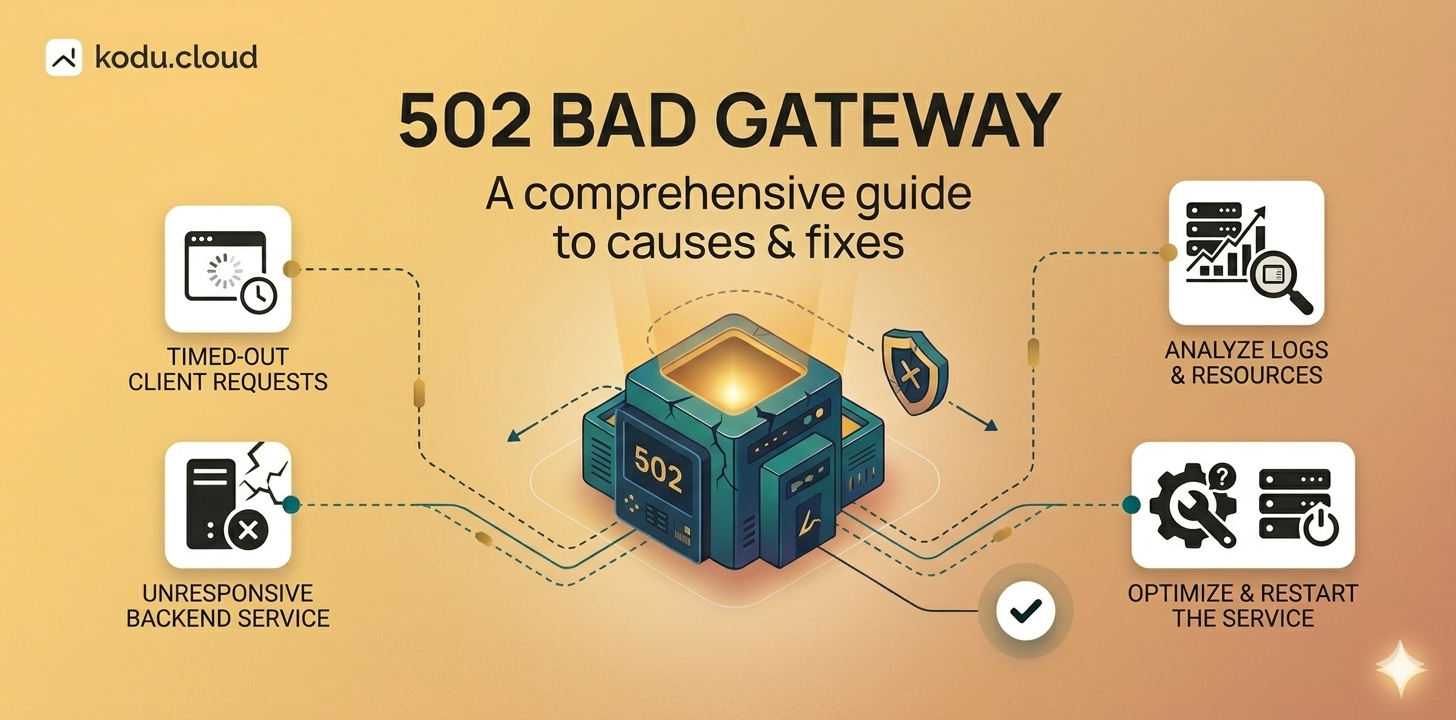
You open your website and instead of content you see a blank page that says 502 Bad Gateway. It looks scary, but in most cases the fix is straightforward. Let's break down what's happening and how to get your site back.
What does 502 actually mean?
When a visitor requests a page, the request typically passes through two layers: a frontend web server (usually Nginx) and a backend application server (PHP-FPM, Apache, Node.js, or something else). Nginx receives the request, forwards it to the backend, and waits for a response.
A 502 Bad Gateway means Nginx tried to get a response from the backend, but received something invalid or got no response at all. The backend either crashed, refused the connection, or returned something Nginx couldn't make sense of.
A common misconception: 502 does not mean your server is down. The server itself is fine - it's the application behind Nginx that's struggling.
Most common causes
The backend service has stopped. This is the number one reason. PHP-FPM crashed, Apache hung, or a Node.js process died silently. Nginx has nothing to talk to.
The server is running out of RAM. When memory runs low, Linux may kill resource-heavy processes automatically. This mechanism is called the OOM killer, and PHP-FPM or MySQL are usually its first victims. If this happens regularly, consider adding a swap file as a safety net.
PHP-FPM worker pool is exhausted. If your site receives more simultaneous requests than PHP-FPM can handle, new requests queue up and eventually time out. This often happens when search engine bots crawl your site too aggressively - we wrote about dealing with that in our bot-blocking guide.
Misconfigured socket or port. Nginx expects to find PHP-FPM on a specific Unix socket or TCP port. If the path in the Nginx config doesn't match the PHP-FPM config, you'll see 502 errors immediately after any change.
How to diagnose it
To perform the following steps, connect to your server over SSH. You can learn how to do that in our SSH article.
Step 1. Check if the backend is running
Check the status of your backend service:
sudo systemctl status php8.2-fpm
Replace php8.2-fpm with your actual PHP version or backend service name. If the output says inactive (dead) or failed, that's your problem. Restart it:
sudo systemctl restart php8.2-fpm
Then check the status again to make sure it started successfully.
Step 2. Check the Nginx error log
The error log almost always tells you exactly what went wrong:
sudo tail -30 /var/log/nginx/error.log
If you're using FASTPANEL®, you can also view logs directly in the web interface: open the site card, go to the "Logs" section, and check the "Frontend Error Log" tab.
Here are the most common error messages and what they mean:
connect() failed - Connection refused - the backend service isn't running. Restart it as shown in Step 1.
connect() failed - No such file or directory - Nginx is trying to reach a Unix socket that doesn't exist. Check that the socket path in your Nginx config matches what PHP-FPM actually creates.
upstream sent too big header - the backend returned HTTP headers that are too large for the default buffer. Add these lines to your Nginx site config inside the server block:
fastcgi_buffers 16 16k;
fastcgi_buffer_size 32k;
After editing, test the config and reload Nginx:
sudo nginx -t && sudo systemctl reload nginx
Step 3. Check server resources
free -h
If the available column shows less than 100-200 MB of free memory, your server is likely running out of RAM. Check what's consuming it:
ps aux --sort=-%mem | head -10
If memory pressure is the root cause, the fastest temporary fix is adding a swap file. However, swap on disk is much slower than RAM and should not be treated as a permanent solution. If your server regularly runs out of memory, it's time to either optimize your applications or upgrade to a plan with more RAM.
Conclusion
A 502 Bad Gateway is almost always a backend issue - a crashed service, exhausted workers, or not enough memory. Check the backend status, read the Nginx error log, and look at your resource usage. In the vast majority of cases, you'll find the answer within minutes.
If you'd rather not deal with it alone, at kodu.cloud we provide free 24/7 technical support with every VPS and dedicated server. All our clients also get FASTPANEL® Extended at no extra cost, which makes log analysis and service management significantly easier through a web interface.